Table of Contents
- Why Connect Your Phone to a TV?
- Method 1: HDMI Cable
- Method 2: Chromecast (Android & iPhone)
- Method 3: AirPlay (iPhone to Smart TV)
- Method 4: Miracast / Screen Mirroring (Android)
- Method 5: Samsung DeX
- Method 6: Smart View / Wireless Cast
- Stream IPTV Directly on Your TV
- Troubleshooting Connection Problems
- Conclusion
- Frequently Asked Questions
🚀 Stop Overpaying for TV — Save Up to 80% Today!
Try IPTV With Subscription – 33,000+ Channels + 140,000 Movies & Series.
👉 View Plans & Pricing
Why Connect Your Phone to a TV?
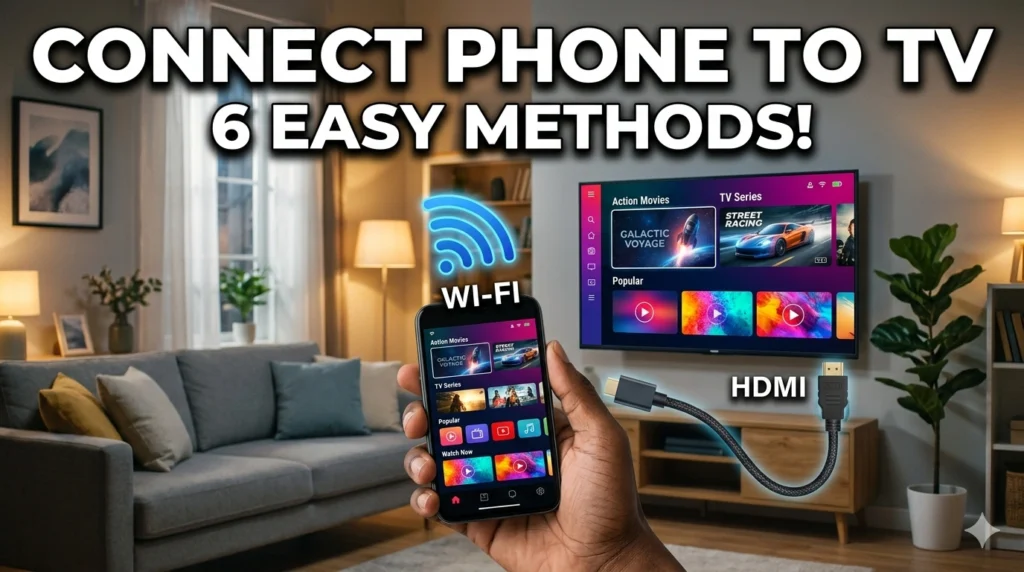
The question of how can I connect my phone to TV comes up constantly as smartphones become our primary entertainment devices. Whether you want to watch a YouTube video on the big screen, share holiday photos with family, game on a larger display, or stream IPTV content through your phone to your television, there are more ways than ever to make it happen.
Both Android and iPhone users have multiple options available — wired and wireless — and the best method depends on your TV type, phone model, and the apps you’re using. This guide covers all six main methods so you can find the right solution quickly. Learn more about screen mirroring technology on Wikipedia.
Method 1: HDMI Cable
The most reliable way to connect your phone to a TV is using a physical HDMI cable. This provides zero-lag, high-quality video output with no Wi-Fi dependency.
For Android Phones
- Most modern Android phones use USB-C. You’ll need a USB-C to HDMI adapter or cable.
- Note: Not all USB-C ports support video output. Check your phone’s specifications.
For iPhone
- Use a Lightning Digital AV Adapter (for older iPhones) or a USB-C to HDMI cable (for iPhone 15 and later).
- Connect the adapter to your iPhone, then connect an HDMI cable from the adapter to your TV.
- Connect the appropriate adapter/cable to your phone.
- Connect the HDMI end to your TV.
- Switch your TV’s input to the corresponding HDMI channel.
- Your phone screen will automatically appear on the TV.
Tip: Some Android phones support DisplayPort Alternate Mode over USB-C, enabling 4K output to compatible TVs.
Method 2: Chromecast (Android & iPhone)
Google Chromecast is one of the most popular answers to how can I connect my phone to TV wirelessly. A Chromecast device plugs into your TV’s HDMI port and lets you “cast” content from your phone to the TV via Wi-Fi.
- Plug Chromecast into your TV’s HDMI port and power it on.
- Set up Chromecast using the Google Home app on your phone.
- To cast: open a compatible app (YouTube, Netflix, etc.) and tap the Cast icon.
- Select your Chromecast device from the list.
- The content streams directly from the internet to your TV — your phone acts as a remote.
Chromecast works with both Android and iPhone. For full screen mirroring (not just individual apps), Android users can use Cast My Screen in Google Home, while iPhone users need to cast app-by-app. Check the IPTV With Subscription channel list to see what you can cast to your TV.
🎬 Stream Premium IPTV From Your Phone to Any TV!
IPTV With Subscription – 33,000+ live channels compatible with all major casting methods.
👉 Get IPTV Now
Method 3: AirPlay (iPhone to Smart TV)
iPhone users have an elegant built-in wireless option: AirPlay. If you have an Apple TV device, or a smart TV that supports AirPlay 2 (many Samsung, LG, Sony, and Vizio TVs do), you can mirror your entire iPhone screen wirelessly.
- Connect your iPhone and TV to the same Wi-Fi network.
- Swipe down from the top-right corner of your iPhone to open Control Center.
- Tap Screen Mirroring.
- Select your TV or Apple TV from the list.
- Enter the AirPlay passcode shown on your TV if prompted.
AirPlay delivers smooth, high-quality mirroring and is the best wireless option for iPhone users. It works for full screen mirroring and also allows individual app casting with a tap on the AirPlay icon within supported apps.
Method 4: Miracast / Screen Mirroring (Android)
Most Android phones support Miracast — a wireless display standard that lets you mirror your screen to a compatible smart TV or Miracast adapter without needing an internet connection.
- On your Android phone, go to Settings → Connected Devices → Cast (exact path varies by manufacturer).
- Enable screen casting or wireless display.
- On your TV, enable the Miracast/Screen Mirroring or Wireless Display feature (usually found in Settings or Input menu).
- Your phone should detect the TV — tap on it to connect.
Samsung phones call this feature Smart View, while other Android manufacturers may label it Cast, Mirror Screen, or Wireless Display. The connection works peer-to-peer without needing a Wi-Fi router, though both devices must support Miracast.
Method 5: Samsung DeX
Samsung DeX is a unique feature exclusive to high-end Samsung Galaxy phones (S series, Note series, and some A series). It extends your phone’s screen to a TV in a desktop-style interface rather than simple mirroring.
- Wired DeX: Use a USB-C to HDMI adapter to connect your Samsung phone to a TV. The TV will display a desktop-style layout.
- Wireless DeX: On compatible Samsung TVs, use Smart View → DeX to connect wirelessly.
Samsung DeX is particularly useful for productivity tasks but also works well for media viewing and IPTV streaming from your phone to the TV.
Method 6: Smart View / Wireless Cast
Samsung’s Smart View and similar apps on other Android phones provide a simple, integrated solution for connecting your phone to a TV wirelessly. If you have a Samsung TV and Samsung phone, Smart View offers the most seamless experience.
- Open the Quick Settings panel on your Samsung phone (swipe down twice).
- Tap Smart View.
- Your Samsung TV should appear in the list of available devices.
- Tap your TV to connect.
For users of the IPTV With Subscription service, Smart View lets you cast the IPTV player app from your phone directly to your Samsung TV for a seamless big-screen viewing experience.
Stream IPTV Directly on Your TV
While connecting your phone to your TV is a great option, for the best IPTV streaming experience, we recommend installing an IPTV player app directly on your smart TV or streaming device. This eliminates any lag from screen mirroring and delivers the highest quality playback.
IPTV apps like IPTV Smarters Pro, TiviMate, and GSE IPTV are available on Android TV, Fire TV, and many smart TV platforms. Once set up with your IPTV With Subscription credentials, you have direct access to 33,000+ channels and 140,000+ movies without needing your phone as an intermediary.
Troubleshooting Connection Problems
Here are solutions to the most common issues when connecting a phone to a TV:
- TV not appearing in AirPlay/Cast list: Ensure both devices are on the same Wi-Fi network. Restart both devices.
- Black screen when casting: Some apps block screen mirroring due to DRM. Use direct app casting (Cast icon within the app) instead of full-screen mirroring.
- HDMI adapter not working: Ensure your phone supports video output over USB-C. Try a different cable or certified adapter.
- Lagging or stuttering: Switch from 2.4GHz to 5GHz Wi-Fi. Move closer to the router.
- No sound: Check TV volume and audio settings. For HDMI connections, ensure audio output is set to HDMI in phone settings.
📺 Phone Connected? Now Stream Premium Content!
IPTV With Subscription – Works on phone, TV, tablet & more. 33,000+ channels awaiting.
👉 Choose a Plan
Conclusion
The answer to how can I connect my phone to TV depends on your devices and preferences — but with six different methods available, there’s a perfect solution for every setup. From the simplicity of an HDMI cable to the elegance of AirPlay or Chromecast, streaming your phone content to the big screen has never been easier.
For the most seamless and high-quality streaming experience, pair your device with a premium IPTV subscription from IPTV With Subscription — delivering 33,000+ live channels and 140,000+ titles on every screen in your home.
🚀 Stop Overpaying for TV — Save Up to 80% Today!
Try IPTV With Subscription – 33,000+ Channels + 140,000 Movies & Series.
👉 View Plans & Pricing
Frequently Asked Questions
Can I connect my phone to a non-smart TV?
Yes. Use an HDMI adapter cable to connect directly via cable, or use a Chromecast/streaming stick device that plugs into your TV’s HDMI port — turning any TV with HDMI into a smart streaming display.
Does connecting my phone to TV use data?
If streaming over Wi-Fi with Chromecast or AirPlay, the content uses your broadband data, not mobile data (assuming both devices are on the same Wi-Fi). HDMI connection doesn’t use any data itself.
Can I connect iPhone to TV without Apple TV?
Yes — use a Lightning/USB-C to HDMI adapter for a wired connection, or use AirPlay 2 on a compatible Samsung, LG, or Sony smart TV for wireless mirroring without Apple TV hardware.
Why does Netflix block screen mirroring?
Netflix uses DRM (Digital Rights Management) protection that blocks full screen mirroring on some devices. Instead, use the Cast icon within the Netflix app, or use a Chromecast/Apple TV device for direct streaming.
What’s the best way to connect Android phone to smart TV?
For Samsung TVs with Samsung phones, Smart View is the easiest option. For other smart TVs, Chromecast or a USB-C to HDMI adapter provides the most reliable connection.