
Table of Contents
- Why You Need to Pair Your Fire TV Remote
- How to Pair Fire TV Stick Remote – Step by Step
- How to Pair a New Remote to an Existing Firestick
- How to Pair Using the Fire TV App
- Remote Not Pairing? Common Fixes
- Using Your Paired Firestick for IPTV Streaming
- Setting Up the Alexa Voice Remote
- Advanced Troubleshooting
- Conclusion
- Frequently Asked Questions
🚀 Stop Overpaying for TV — Save Up to 80% Today!
Try IPTV With Subscription – 33,000+ Channels + 140,000 Movies & Series.
👉 View Plans & Pricing
Why You Need to Pair Your Fire TV Remote
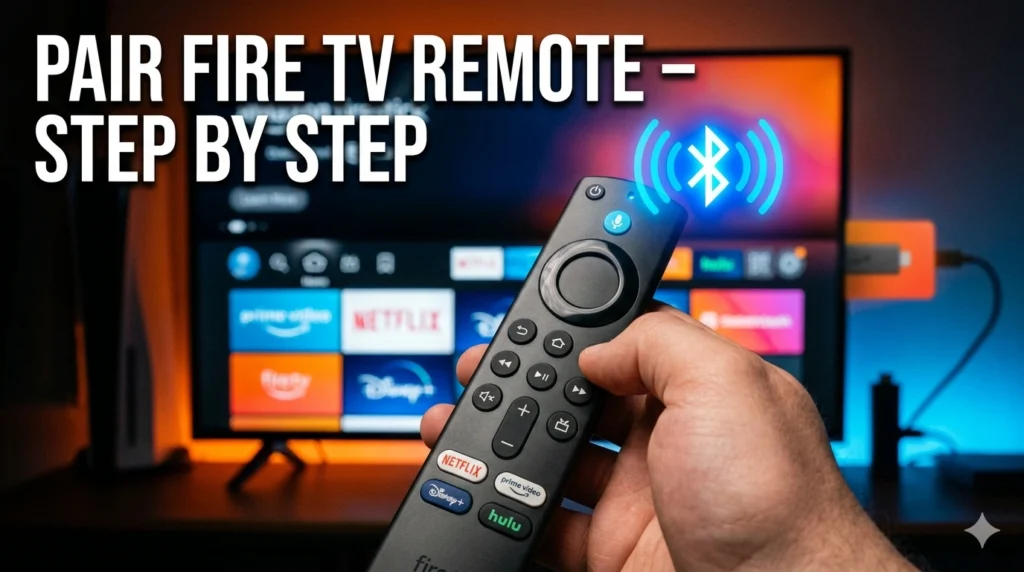
The Amazon Fire TV Stick uses Bluetooth to communicate with its remote, not infrared (IR) like traditional TV remotes. This means the remote must be paired to your specific Firestick before it will work — it won’t simply work out of the box without this pairing process. Understanding how to pair your Fire TV Stick remote is essential whether you’re setting up a brand new device or replacing a lost or broken remote.
Common situations where you’ll need to pair a Fire TV remote include:
- First-time setup of a new Fire TV Stick
- Replacing a lost, broken, or unresponsive remote
- Pairing a second remote to your device
- After a factory reset of your Firestick
The process is quick and straightforward once you know the steps. Learn more about how Bluetooth pairing works on Wikipedia.
How to Pair Fire TV Stick Remote – Step by Step
Here is the standard method for how to pair a Fire TV Stick remote during initial setup or when your remote becomes unresponsive:
- Insert fresh batteries into your Fire TV remote. Weak or dead batteries are the most common cause of pairing failure.
- Plug your Firestick into your TV’s HDMI port and power it on using the included USB power adapter.
- Wait for the startup screen to appear on your TV. This typically takes 30–60 seconds.
- Hold the remote 10 feet or closer to your Firestick.
- Press and hold the Home button (the house icon) on the remote for 10 seconds.
- The Firestick will automatically detect and pair with the remote. A confirmation notification will appear on screen.
Tip: If the remote doesn’t pair after 10 seconds, release the Home button, wait 60 seconds, and try again. The Firestick automatically searches for remotes for the first 2 minutes after powering on.
How to Pair a New Remote to an Existing Firestick
If you’ve purchased a replacement remote or an additional remote for an already-configured Firestick, the pairing method is slightly different since you won’t have a working remote to navigate menus.
Method 1: Home Button Hold
- Make sure your Firestick is powered on and displaying its home screen.
- Place the new remote close to the Firestick (within 10 feet).
- Press and hold the Home button for 10 seconds.
- Release and wait for the pairing notification on screen.
Method 2: Via Settings (Using Existing Remote or App)
- Using your existing working remote or the Fire TV app, go to Settings → Controllers & Bluetooth Devices → Amazon Fire TV Remotes.
- Select Add New Remote.
- Press and hold the Home button on the new remote for 10 seconds.
- The new remote will appear in the list when detected — select it to complete pairing.
Once your remote is paired, you’ll be ready to enjoy all your streaming apps. Check the IPTV channel list to see what content is available to stream on your Firestick.
🎬 Your Firestick Paired — Now Stream Thousands of Channels!
IPTV With Subscription – The perfect IPTV service for Amazon Fire TV. 33,000+ live channels.
👉 Get Your IPTV Plan
How to Pair Using the Fire TV App
If you’ve lost your remote entirely and can’t navigate your Firestick’s menus, the Amazon Fire TV app (available on iOS and Android) can serve as a temporary remote control while you complete the pairing process for a new physical remote.
- Download the Amazon Fire TV app on your smartphone.
- Open the app and ensure your phone is on the same Wi-Fi network as your Firestick.
- The app will detect your Firestick — tap on it to connect (you may need to enter a PIN shown on your TV screen).
- Use the app as a remote to navigate to Settings → Controllers & Bluetooth Devices → Amazon Fire TV Remotes → Add New Remote.
- Press and hold the Home button on your new physical remote to complete pairing.
Remote Not Pairing? Common Fixes
If you’re struggling with how to pair your Fire TV Stick remote and it’s not working, here are the most effective troubleshooting steps:
Fix 1: Replace Batteries
The most common cause of pairing failure is weak batteries. Replace with brand new AAA batteries (two required) and try again.
Fix 2: Restart the Firestick
Unplug the Firestick from power for 30 seconds, then plug it back in. Once the startup screen appears, immediately try pairing the remote again.
Fix 3: Clear Bluetooth Interference
Move any other Bluetooth devices (speakers, headphones, phones) away from the Firestick. Bluetooth interference can prevent successful pairing.
Fix 4: Factory Reset the Remote
- Press and hold the Left directional button + Back button + Menu button simultaneously for 10 seconds.
- Release all buttons and wait 60 seconds.
- Remove and reinsert the batteries.
- Press the Home button to initiate pairing again.
Fix 5: Factory Reset the Firestick
As a last resort, factory reset your Firestick (this will erase all settings and installed apps). Hold the Back button and the right side of the circular navigation ring for 10 seconds when the home screen is visible.
Using Your Paired Firestick for IPTV Streaming
Once you’ve successfully paired your Fire TV Stick remote, your device is ready for the full streaming experience. One of the best ways to maximise your Firestick is by installing an IPTV player and subscribing to a premium IPTV service.
With a subscription from IPTV With Subscription, your Firestick transforms into an entertainment powerhouse — giving you access to 33,000+ live channels including premium sports, international news, movies, and series. Combined with IPTV Smarters Pro or TiviMate as your player app, the experience rivals any cable or satellite package.
Explore IPTV With Subscription plans designed to work seamlessly on Fire TV Stick devices.
Setting Up the Alexa Voice Remote
Most current Fire TV Sticks include the Alexa Voice Remote, which works the same way for pairing but also requires microphone permissions to be set up for voice commands.
- Pair the remote using the Home button hold method described above.
- Once paired, press the microphone button on the remote and speak a command (e.g., “Open Netflix”).
- If voice commands don’t work, go to Settings → Alexa → Microphone access and ensure it’s enabled.
Alexa integration allows you to search for content, control playback, check the weather, and even control smart home devices — all from your Firestick remote.
Advanced Troubleshooting
For persistent pairing issues, consider these advanced steps:
- Update Firestick software: Go to Settings → My Fire TV → About → Check for Updates. Outdated firmware can cause Bluetooth pairing problems.
- Check for physical damage: Inspect the remote for any physical damage, especially around the battery contacts. Clean the contacts with a dry cloth if corroded.
- Contact Amazon support: If your remote is within warranty and none of the above fixes work, Amazon’s support team can arrange a replacement remote.
📺 Firestick Ready? Start Streaming the Good Stuff!
IPTV With Subscription – Premium IPTV for your Fire TV Stick. 33,000+ channels, no contracts.
👉 Get Started
Conclusion
Now you know exactly how to pair your Fire TV Stick remote — whether it’s your first setup, a replacement remote, or a remote that stopped responding. The process takes under a minute in most cases, and if you run into problems, the troubleshooting steps above will resolve virtually any pairing issue.
Once your remote is paired and your Firestick is up and running, take your entertainment to the next level with a premium IPTV subscription from IPTV With Subscription — the perfect partner for your Amazon Fire TV Stick.
🚀 Stop Overpaying for TV — Save Up to 80% Today!
Try IPTV With Subscription – 33,000+ Channels + 140,000 Movies & Series.
👉 View Plans & Pricing
Frequently Asked Questions
Why won’t my Fire TV Stick remote pair?
The most common causes are dead batteries, Bluetooth interference, or the remote being too far from the Firestick. Replace batteries, move closer, and hold the Home button for 10 seconds to retry pairing.
Can I pair multiple remotes to one Firestick?
Yes. Amazon Fire TV Stick supports up to 7 paired remotes simultaneously. Go to Settings → Controllers & Bluetooth Devices → Amazon Fire TV Remotes → Add New Remote.
Does any Fire TV remote work with any Fire Stick?
Most Amazon Fire TV remotes are cross-compatible with Fire TV Stick models from 2016 onwards. However, some features (like TV controls) require a compatible remote. Check Amazon’s compatibility page for specifics.
How do I pair my Fire TV remote without a TV?
You can use the Amazon Fire TV smartphone app as a virtual remote to navigate settings and pair a new physical remote — no screen navigation with a remote required.
How far can my Fire TV remote work?
Amazon Fire TV remotes use Bluetooth and typically work up to 30 feet (10 metres) from the Firestick, and do not require line-of-sight like IR remotes.