
Table of Contents
- Why Sign Out of Netflix on TV?
- How to Sign Out of Netflix on Smart TV
- Sign Out of Netflix on Amazon Firestick
- Sign Out of Netflix on Roku
- Sign Out of Netflix on Apple TV
- How to Sign Out of Netflix Remotely
- IPTV as a Netflix Alternative
- Troubleshooting Sign-Out Issues
- Conclusion
- Frequently Asked Questions
🚀 Stop Overpaying for TV — Save Up to 80% Today!
Try IPTV With Subscription – 33,000+ Channels + 140,000 Movies & Series.
👉 View Plans & Pricing
Why Sign Out of Netflix on TV?
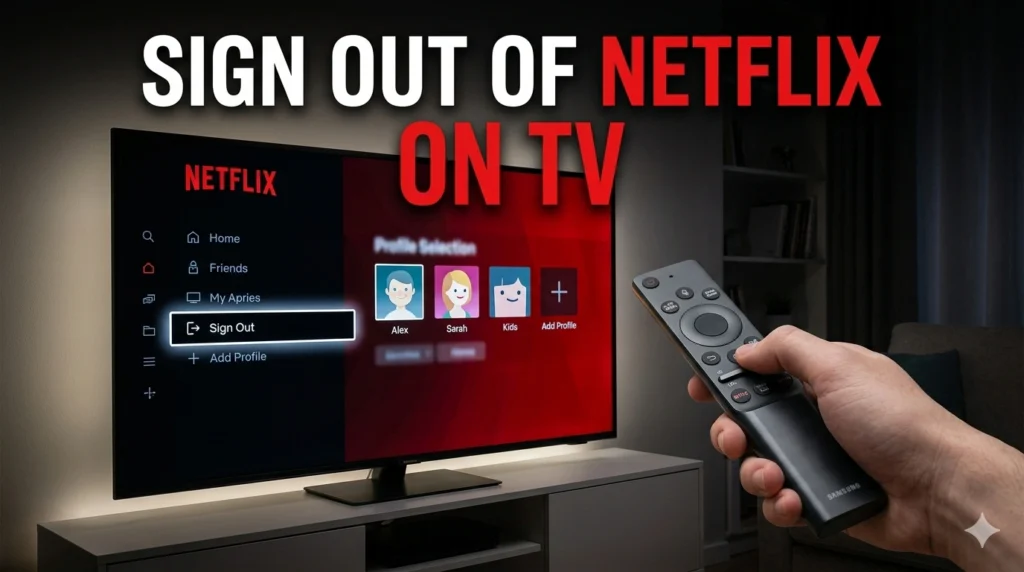
Knowing how to sign out of Netflix on TV is an essential skill for any streaming household. Whether you’re selling a smart TV, lending it to a friend, switching Netflix accounts, or simply managing your household profiles, logging out properly protects your personal data and viewing history.
Netflix also imposes limits on the number of devices that can stream simultaneously — knowing how to sign out of Netflix on your TV can free up a screen slot for another family member or device.
The process varies depending on the TV brand and streaming device you use. This guide covers all major platforms so you can sign out quickly and confidently. Learn more about Netflix on Wikipedia.
How to Sign Out of Netflix on Smart TV
The steps differ slightly by manufacturer, but the general process for logging out of Netflix on a smart TV follows the same logic across Samsung, LG, Sony, and others.
Samsung Smart TV
- Open the Netflix app on your Samsung TV.
- On the home/profile screen, scroll left to find the menu icon (three horizontal lines or gear icon).
- Select Settings or Get Help.
- Choose Sign Out and confirm.
LG Smart TV (webOS)
- Open Netflix and navigate to the left sidebar.
- Scroll down to Get Help.
- Select Sign Out.
Sony / Android TV
- Open Netflix and go to the profile menu.
- Scroll to Account or Settings.
- Select Sign Out.
If your Smart TV runs a different OS, the path is usually: Netflix → Menu → Settings/Help → Sign Out. Once signed out, you can explore IPTV alternatives that offer far more content for less money.
Sign Out of Netflix on Amazon Firestick
If you’re trying to figure out how to sign out of Netflix on TV when using a Firestick, the steps are slightly different since Netflix runs as a standalone app.
- Open the Netflix app on your Firestick.
- On the left side navigation menu, scroll to the bottom and select Settings.
- Choose Sign Out.
- Confirm by selecting Yes.
Tip: You can also uninstall the Netflix app entirely from your Firestick via Settings → Applications → Manage Installed Applications.
Sign Out of Netflix on Roku
- Press the Home button on your Roku remote.
- Highlight the Netflix channel (don’t open it yet).
- Press the Star (*) button for options.
- Select Remove Channel or open Netflix and go to Settings → Sign Out.
Alternatively, open Netflix → scroll left → Get Help → Sign Out.
🎬 Tired of Netflix’s Rising Prices?
Switch to IPTV With Subscription — Stream 33,000+ live channels & 140,000 titles for a fraction of the cost.
👉 Compare Plans
Sign Out of Netflix on Apple TV
- Open the Netflix app on Apple TV.
- Navigate to the left menu and scroll down to Get Help.
- Select Sign Out.
- Confirm your choice.
On older Apple TV models (3rd gen), you may need to go directly to your Netflix account settings online to deauthorize the device.
How to Sign Out of Netflix Remotely
If you can’t physically access the TV, Netflix allows you to sign out of all devices remotely from any browser:
- Log into your Netflix account at Netflix.com on any browser.
- Click your profile icon → Account.
- Scroll to Security & Privacy → Manage Access and Devices.
- Select the device you want to sign out of, or choose Sign out of all devices.
This is particularly useful if you’ve sold a TV or forgotten to log out before leaving a hotel. Check our channel list to see what premium content you can access with an IPTV subscription instead.
IPTV as a Netflix Alternative
With Netflix raising prices and restricting account sharing, many viewers are exploring IPTV as a more flexible and affordable option. An IPTV subscription typically costs far less per month while offering more content — including live sports, international channels, and massive VOD libraries.
Unlike Netflix, IPTV doesn’t enforce strict household rules, and you can access it on virtually any device using apps like IPTV Smarters Pro. The IPTV With Subscription plans start at a fraction of what Netflix charges for a premium tier.
Troubleshooting Sign-Out Issues
Sometimes the sign-out option can be difficult to find or unavailable. Here’s what to do:
- Can’t find Sign Out? Try scrolling further left on the Netflix home screen — the menu is often hidden off-screen.
- App is frozen? Force-close Netflix and restart it, then try again.
- TV won’t respond? Use the remote logout method at Netflix.com.
- Netflix asks for password on sign-out? Enter your current account password to confirm.
📺 More Content, Lower Price — Make the Switch Today!
IPTV With Subscription gives you everything Netflix offers and much more, live & on demand.
👉 See IPTV Plans
Conclusion
Knowing how to sign out of Netflix on TV is simpler than most users expect once you know where to look. Whether you’re on a Samsung, LG, Sony, Firestick, Roku, or Apple TV, the process takes less than a minute. For remote sign-outs, Netflix’s web dashboard has you covered.
If Netflix’s rising costs and restrictions have you frustrated, consider switching to an IPTV service like IPTV With Subscription — more channels, more movies, and a far better value for your money.
🚀 Stop Overpaying for TV — Save Up to 80% Today!
Try IPTV With Subscription – 33,000+ Channels + 140,000 Movies & Series.
👉 View Plans & Pricing
Frequently Asked Questions
How do I sign out of Netflix on my TV without a remote?
You can sign out remotely by visiting Netflix.com, going to Account settings, and selecting “Sign out of all devices” under Manage Access and Devices.
Will signing out of Netflix delete my profile?
No. Signing out only removes your account from that TV. Your profile, viewing history, and watchlist remain intact when you log back in.
Why can’t I find the sign-out option on Netflix?
On some smart TVs the menu is accessible only from the main Netflix home screen — not while watching content. Navigate left from the home screen to find Get Help → Sign Out.
How to sign out of Netflix on TV if I don’t know the password?
Use the remote logout method on Netflix.com. If you don’t know the password, use the “Forgot Password” option on the Netflix website to reset it first.
Does signing out of Netflix affect other family members?
Signing out on one device only affects that device. Other household members on different screens remain logged in unless you use the “Sign out of all devices” option.